
How to edit text in a PDF on Windows.
Correct a heading, a name or a short passage without rebuilding the whole document. PDF Craft Pro lets you edit existing PDF text and save the result as a new PDF.
Getting started
- Install PDF Craft from Microsoft Store and open your PDF.
- Sign in with Pro or an eligible trial.
- Follow the correction and saved-copy checks below.
Before you start
Keep the source PDF so you can compare the result with the original. A PDF stores page content differently from a word-processing document; replacing a short phrase is a more focused job than rewriting an entire layout. Editing requires Pro or an eligible Pro trial.
Make a text correction
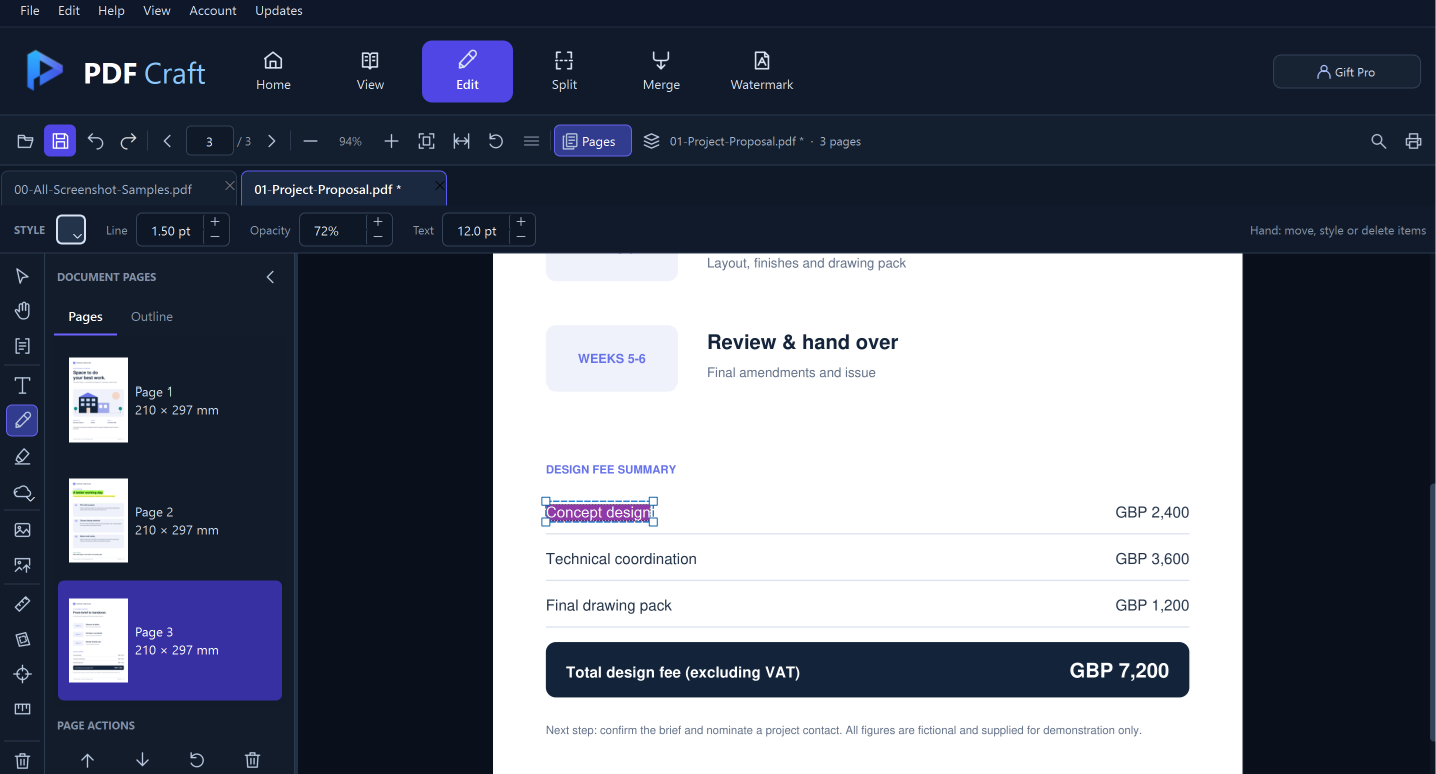
For example, change a short heading in a proposal. The screenshot shows a selected text box in the sample document’s fee summary.
Select the text tool
Choose Edit, then Edit existing text. Click the text on the page to open its wording for editing.
1Edit existing textChoose the pencil tool to edit existing PDF text.
Real PDF Craft screenshot · guide markers addedChange the wording
Select the part you want to replace and type your correction. Keep the available space in mind; longer wording may not fit the original box.
1Selected wordingThe selected text box in the sample proposal is ready for a wording change.
Real PDF Craft screenshot · guide markers addedApply and inspect
Click outside the text box to apply the change. Inspect the line, nearby wording and spacing. Use Undo if the result needs correcting. Press Esc to cancel an unfinished edit.
1UndoUndo lets you correct an applied change. Check the wording before saving.
Real PDF Craft screenshot · guide markers addedSave a new PDF
Choose File > Save a copy… or press Ctrl+Shift+S. Use a different filename, then reopen the saved PDF and check the correction.
1Save a copyUse the save control, or File > Save a copy… (Ctrl+Shift+S).
Real PDF Craft screenshot · guide markers added
Remove a whole text box
Use deletion for ordinary document editing. Use the redaction guide for removing sensitive selectable text before sharing.
Select the whole wording
With Edit existing text active, click the box and select all its wording.
1Selected wordingThe selected text box in the sample proposal is ready for a wording change.
Real PDF Craft screenshot · guide markers addedDelete the box
Press Delete with the whole wording selected, or clear the wording and click outside. Undo restores the deleted text if you need it.
1UndoUndo lets you correct an applied change. Check the wording before saving.
Real PDF Craft screenshot · guide markers addedCheck what remains
Check nearby text, images and spacing, then save a copy. Removing visible wording is a different workflow from producing a redacted copy.
1Save a copyUse the save control, or File > Save a copy… (Ctrl+Shift+S).
Real PDF Craft screenshot · guide markers added
Your questions answered
Why can’t I click the words in a scanned PDF?
They may be pixels in a page image rather than PDF text. This editing workflow does not perform OCR or turn scanned lettering into editable text.
Why is editing blocked?
Editing needs Pro, and a PDF owner may restrict changes. Use an authorised unrestricted copy when the document’s permissions block editing.
What if my replacement wording does not fit?
Use a shorter correction or revise the source document and export a new PDF. Inspect the applied result before saving.
Will PDF Craft overwrite the original?
The Save a copy workflow requires a different filename from the source PDF. Keep both files until you have checked the edited copy.
Put it into practice.
Start with the Free reader. Choose Pro when you need editing, measurement and page tools.