
How to redact selectable text in a PDF.
Remove selected wording from the copy you plan to share. PDF Craft Pro covers the selected text with an opaque pattern and produces a redacted PDF when you save a copy.
Getting started
- Open your PDF and sign in with Pro or an eligible trial.
- Check that the words you need to remove are selectable text.
- Follow the marking, saving and output checks below.
Understand the saved result
A saved redacted copy turns every page into an image. Covered pixels are replaced, and source PDF text and objects are not carried into the output. Selectable text, interactive links and forms are lost in that copy. Keep the original private if you still need its editable content.
Mark the text you want to remove
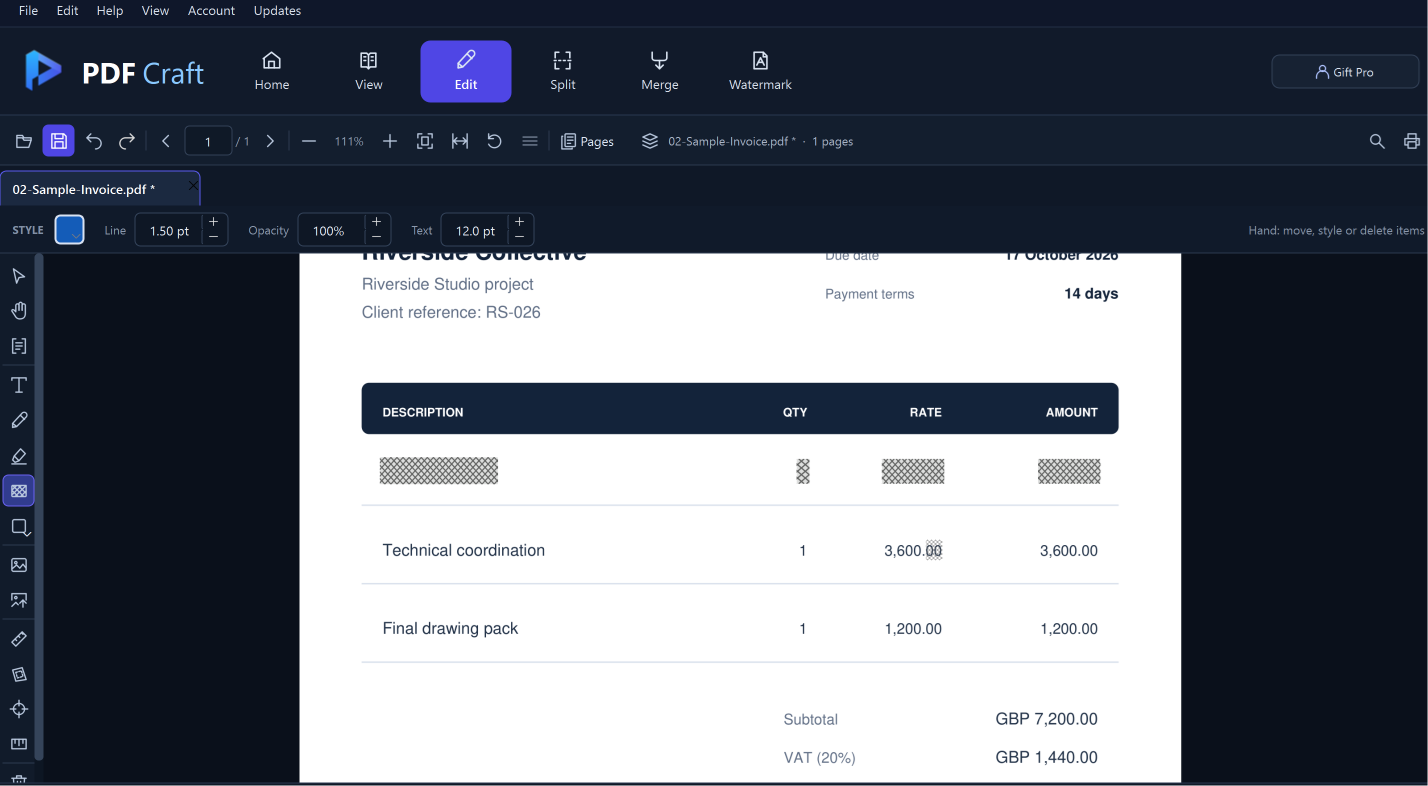
The screenshot uses a fictional invoice to show patterned redaction over a selected row.
Select Redact text
Choose Edit, then Redact text. Drag across the words or lines you want removed.
1Redact textChoose Redact text. It selects PDF words and lines for a redacted copy.
Real PDF Craft screenshot · guide markers addedInspect the coverage
Zoom in and check the opaque pattern covers the intended wording. Review the whole document for repeated occurrences you also need to remove.
1Covered wordingCheck the opaque pattern over every word you intend to remove. The sample invoice is fictional.
Real PDF Craft screenshot · guide markers addedCorrect a selection
Use Undo to remove a pending redaction if you selected the wrong text. The working document still retains content for Undo; it is not the copy to share.
1UndoUndo lets you correct an applied change. Check the wording before saving.
Real PDF Craft screenshot · guide markers added
Save and verify the redacted copy
The removal takes effect in the saved output. Share that output after checking it.
Save a separate file
Choose File > Save a copy… or Ctrl+Shift+S. The save dialog identifies the redacted copy and explains that pages become images. Use a distinct filename.
1Save a copyUse the save control, or File > Save a copy… (Ctrl+Shift+S).
Real PDF Craft screenshot · guide markers addedReopen the saved copy
Open the output PDF and inspect every marked region. Check that the correct text was removed and the remaining page content is readable.
1Covered wordingCheck the opaque pattern over every word you intend to remove. The sample invoice is fictional.
Real PDF Craft screenshot · guide markers addedCheck the whole document
Review the other pages for information you may have missed. Text search and copying will no longer work on the flattened output; inspect its pages visually.
Review the saved copyEvery pageEvery marked regionRemaining contentThe saved redacted pages are images. Review them visually.
Workflow checkShare the output
Send only the checked redacted copy. Keep the original and the working document private.
Share the checked outputOriginal stays privateRedacted copy is sharedShare the saved redacted copy, not the working document.
Workflow check
Your questions answered
Is a highlight or a shape over text enough?
No. Highlighting or covering wording in a working PDF is a different operation. Use Redact text and save the redacted copy.
Can I undo a redaction after saving?
Undo applies to pending changes in the working document. The saved redacted copy does not retain the removed content. Keep the original private if you need to make a different selection.
Why can’t I search the saved redacted PDF?
All saved pages become images. The output has no selectable PDF text layer, interactive forms or links.
Can I use this on scanned lettering?
This text-selection workflow requires a PDF text layer. It does not redact image-only lettering or provide OCR.
Put it into practice.
Start with the Free reader. Choose Pro when you need editing, measurement and page tools.