
How to split a PDF and extract pages.
Keep just the pages you need from a report or drawing pack. PDF Craft Pro lets you select pages visually or type a range, then save them together or as separate PDF files.
Getting started
- Install PDF Craft on Windows 11 and sign in with Pro or an eligible trial.
- Choose Split and load your source PDF.
- Select the pages and choose one of the two save options below.
Choose the output you need
An extracted PDF keeps selected pages together in one document. Saving each page separately produces one PDF per selected page. For example, keep pages 1–3 and page 5 together for a shorter report, or export a drawing sheet on its own.
Select pages using thumbnails or a range
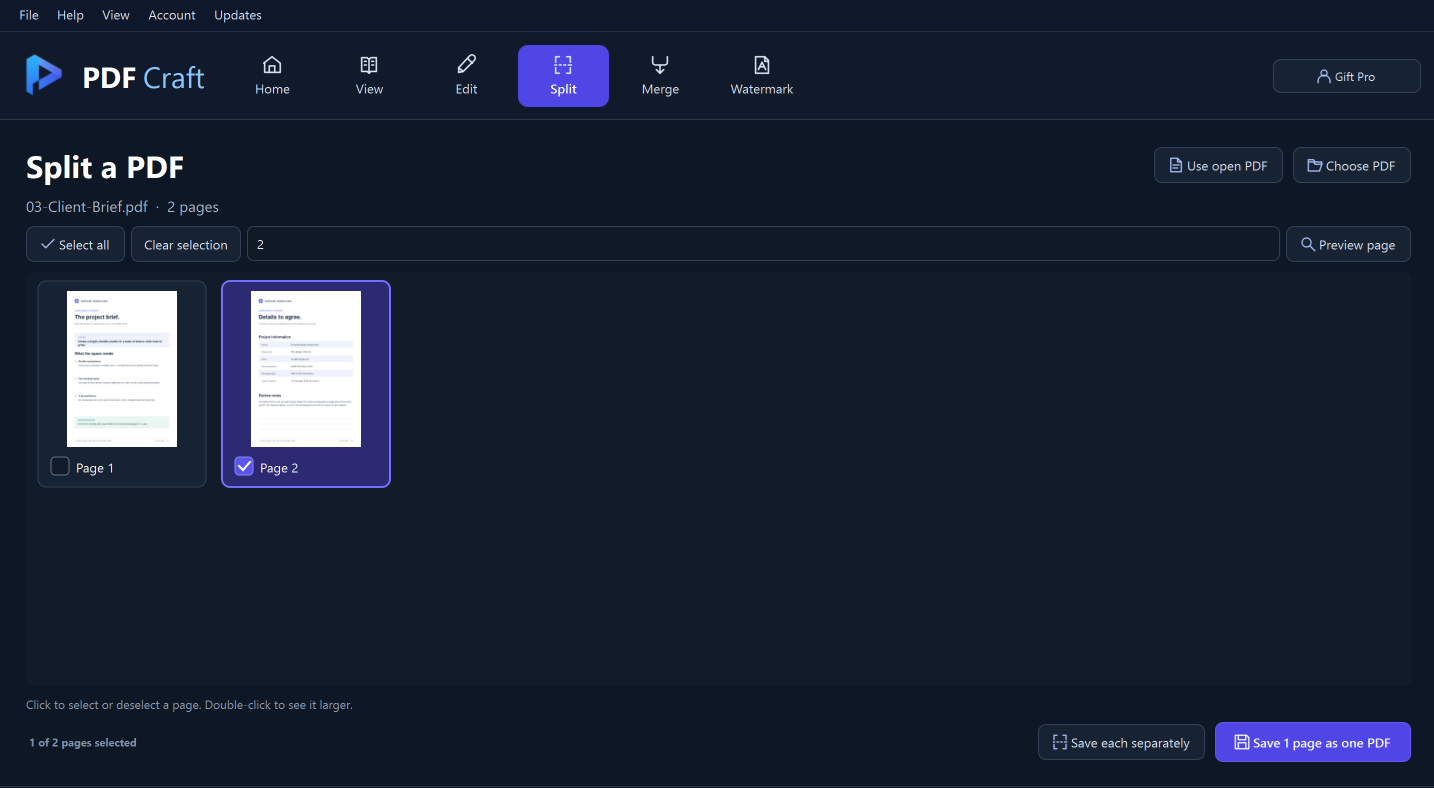
The sample screenshot shows page 2 selected from a two-page client brief.
Load the source
Choose Split, then Choose PDF. If the document is already open, use Use open PDF; this can include your current unsaved edits.
1Choose PDFChoose PDF loads the source. Use open PDF takes the current working document.
Real PDF Craft screenshot · guide markers addedSelect the pages
Click a thumbnail to select or deselect it. Or type a range such as 1-3, 5 in the pages field. Those numbers refer to the PDF’s page positions, which may differ from printed page labels.
1Pages fieldType a page range such as 1-3, 5 in the selection field.
Real PDF Craft screenshot · guide markers addedPreview and check
Double-click a thumbnail, or select Preview page, to inspect it. Check the selected-page count before saving.
1Preview pagePreview page opens a closer look at the selected page.
Real PDF Craft screenshot · guide markers added
Save together or as separate PDFs
Choose the output format after you have checked the selection.
Save one extracted document
Choose the Save … as one PDF button. Its label shows the selected-page count. Choose a new filename for the extracted PDF.
1Save one PDFSave the selected pages together. The button label shows the page count.
Real PDF Craft screenshot · guide markers addedOr save each page separately
Choose Save each separately and select an output folder. PDF Craft creates a new subfolder containing the selected pages as individual PDFs.
1Save each separatelySave each separately creates an individual PDF for every selected page.
Real PDF Craft screenshot · guide markers addedVerify the result
Open the output and check the first and last pages, page count and any important content. Keep the source PDF for the pages you left out.
1Selected pageThe sample shows page 2 selected. Click a thumbnail to select or deselect it.
Real PDF Craft screenshot · guide markers added
Your questions answered
Can I extract a single page?
Yes. Select only that page and save it as one PDF.
Can I split every page into its own file?
Choose Select all, then Save each separately.
Why can’t I extract pages from a protected PDF?
A password may be required, or the owner may restrict page extraction. Use an authorised copy that allows the operation.
Is splitting included in Free?
Splitting and extracting pages are Pro features. Reading and printing remain free.
Put it into practice.
Start with the Free reader. Choose Pro when you need editing, measurement and page tools.