
How to merge PDF files into one document.
Bring a brief, a report and a drawing pack together in one PDF. Add the files, check their order and save a combined document using PDF Craft Pro on Windows 11.
Getting started
- Install PDF Craft and sign in with Pro or an eligible trial.
- Choose Merge and add the PDFs you want to combine.
- Arrange the files and save the result using the steps below.
Plan the order first
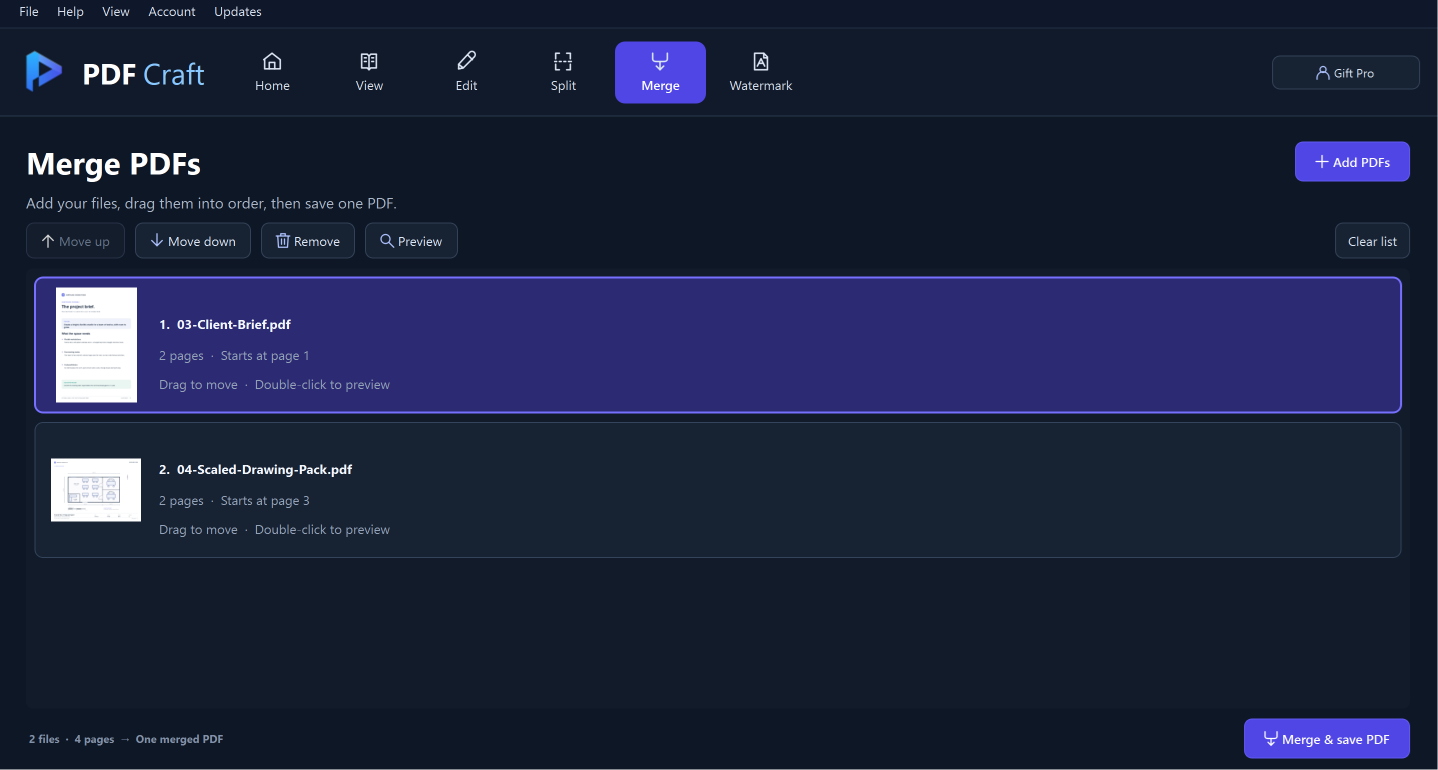
Decide which document should come first. In the sample screenshot, a two-page client brief comes before a two-page drawing pack, so the drawings start on page 3. The final document contains four pages.
Add files and arrange their order
Merge joins complete files in the order shown in the list. If you only need part of a file, extract those pages first using Split.
Add the documents
Choose Merge, then Add PDFs. Select the PDF files you want to combine, or drop them into the merge workspace.
1Add PDFsAdd PDFs loads the documents you want to combine.
Real PDF Craft screenshot · guide markers addedSet the sequence
Drag a document card into place, or select it and use Move up or Move down. The cards show each file’s page count and its starting page in the result.
1Move up / down2Document cardUse Move up / Move down, or drag a document card into its place in the list.
Real PDF Craft screenshot · guide markers addedPreview the inputs
Select a card and choose Preview, or double-click it. Use Remove to leave a file out of the merge list without deleting it from your computer.
1PreviewPreview opens the selected file. Remove takes it out of this list.
Real PDF Craft screenshot · guide markers added
Save and check the combined PDF
Use a filename that describes the completed pack.
Save the merge
Select Merge & save PDF and choose a new output filename. PDF Craft keeps the input PDFs separate from the saved result.
1Merge & save PDFSave the combined document using Merge & save PDF.
Real PDF Craft screenshot · guide markers addedCheck the page count
Open the combined PDF. Compare its page count with the total shown in the merge workspace.
1Combined page countThe sample combines two files with four pages. Compare this count with your output.
Real PDF Craft screenshot · guide markers addedCheck the joins
Inspect the last page of one source and the first page of the next. Confirm that the order, page orientation and visible content match the pack you intended.
1Move up / down2Document cardUse Move up / Move down, or drag a document card into its place in the list.
Real PDF Craft screenshot · guide markers added
Your questions answered
Does merging replace the source PDFs?
No. The merge workflow saves a new PDF and requires a different filename from its inputs.
Can I include only a few pages from one file?
Use Split to save those pages as a new PDF, then add that extracted file to Merge.
Can I change the order before saving?
Yes. Drag the document cards or use Move up and Move down.
Is merging a Pro feature?
Yes. Merge is included in every Pro plan and an eligible Pro trial.
Put it into practice.
Start with the Free reader. Choose Pro when you need editing, measurement and page tools.