
Convert PDF to Word on your Windows PC.
Take a PDF report into a Word document you can work with. PDF Craft Pro recovers supported text, tables and pictures into DOCX, with a separate page-picture mode when visual appearance matters more than editable text.
Getting started
- Install or update PDF Craft from Microsoft Store on Windows 11, 64-bit. Converters require app version 1.15.1 or later; check Help → About.
- Sign in with Pro or an active trial. Conversion is included in every Pro plan.
- Keep the source PDF and check the converted file before using or sharing it.
Convert locally on your PC
PDF conversion happens on your computer. Your PDFs are not uploaded for conversion. Account sign-in and licence checks use the PDF Craft account service.
Choose the right Word mode
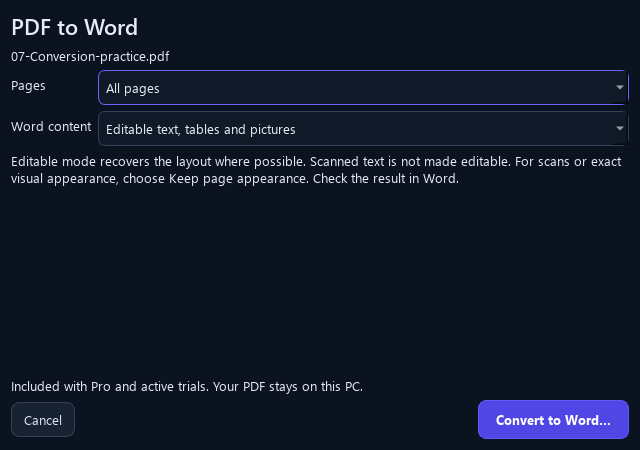
Editable text, tables and pictures attempts to recover the PDF layout. Keep page appearance places a picture of each page in Word; its text is not editable. A PDF is a fixed page format, so recovered spacing, fonts, columns and reading order may need adjustment.
Understand scanned pages
Scanned text needs OCR before editable conversion; OCR is not included. For an image-only PDF, use Keep page appearance to put the pages into Word as pictures. Very large drawing sheets may be scaled to fit Word page-size limits.
Choose the file, convert and check the result
Each click starts with a new PDF file selection. Cancelling the picker does not convert the last document.
Choose PDF to Word
Open Convert in the top toolbar and click Convert to Word. You do not need to load the PDF into the reader first.
1Choose this converterOpen Convert and select the tool you need. The next action opens the PDF file picker.
Real PDF Craft screenshot · guide markers addedSelect this conversion’s PDF
Use the file picker to choose the report or document you want. Every converter click asks for a file, so the next job can use a different PDF.
Choose the sourceWindows file pickerYour report.pdfThe selected PDF is used for this conversion.
Workflow checkChoose the pages and content
Use All pages, Current page or Choose pages. For a range, enter values such as 1-3, 5. Select editable content or Keep page appearance.
1Pages and content optionsThe options shown are from PDF Craft using the fictional conversion-practice PDF.
Real PDF Craft screenshot · guide markers addedSave and review in Word
Click Convert to Word, choose a .docx filename and wait for completion. Open it in Word and check headings, tables, pictures and page order against the PDF. You can cancel a running conversion.
Check the DOCXEditable textTable rowsPicturesPage orderAn export completing successfully does not replace checking its contents.
Workflow check
Your questions answered
Can I convert a scanned PDF to editable Word text?
Not without OCR first. PDF Craft’s Keep page appearance mode puts scan pages in Word as pictures, with no editable lettering.
Does the Word document look exactly like the PDF?
Editable conversion recovers supported layout, but complex layouts can differ. Use page-picture mode for a visual page copy and review the saved document.
Is PDF to Word free?
The Free reader remains free. Word conversion requires Pro or an active trial; all Pro billing periods include it.
Put it into practice.
Start with the Free reader. Choose Pro for editing, measurement, page tools and PDF conversion.