
Convert PDF tables to Excel worksheets.
Move printed PDF table content into an Excel workbook. PDF Craft Pro extracts supported ruled tables into worksheet cells and keeps other selectable text in separate sheets.
Getting started
- Install or update PDF Craft from Microsoft Store on Windows 11, 64-bit. Converters require app version 1.15.1 or later; check Help → About.
- Sign in with Pro or an active trial. Conversion is included in every Pro plan.
- Keep the source PDF and check the converted file before using or sharing it.
Convert locally on your PC
PDF conversion happens on your computer. Your PDFs are not uploaded for conversion. Account sign-in and licence checks use the PDF Craft account service.
What goes into the workbook
Each detected ruled table gets a worksheet. Selectable text outside the detected tables is kept in text sheets. When a page has no ruled table, the available text is preserved as text rows; review its column alignment.
Keep printed values intact
Values stay as printed text, including references such as 00123 and amounts such as 500.50. PDF formulas are not recovered. If you want to calculate with extracted numbers, review and convert the relevant cells to numbers in Excel first.
Check scans and complex tables
Image-only tables need OCR before editable extraction; OCR is not included. Merged cells, split rows, unusual borders and totals should be checked against the PDF.
Choose the file, convert and check the result
Each click starts with a new PDF file selection. Cancelling the picker does not convert the last document.
Start Excel conversion
Open Convert and select Convert to Excel.
1Choose this converterOpen Convert and select the tool you need. The next action opens the PDF file picker.
Real PDF Craft screenshot · guide markers addedChoose the PDF
Select the source document in the file picker. You choose a file each time; cancelling leaves the last PDF unconverted.
Choose the table PDFWindows file pickerYour schedule.pdfChoose a PDF with selectable text and visible table borders for the table workflow.
Workflow checkSelect pages and extraction mode
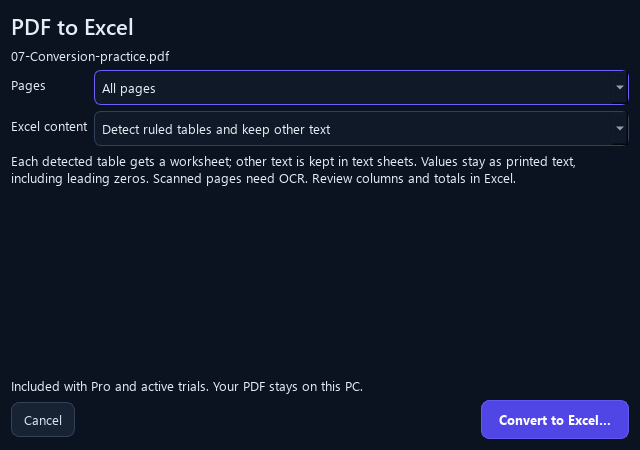
Choose all pages, the current page or a typed range. Use Detect ruled tables and keep other text for tables, or Extract text rows only when you want selectable text.
1Pages and content optionsThe options shown are from PDF Craft using the fictional conversion-practice PDF.
Real PDF Craft screenshot · guide markers addedSave and check the workbook
Click Convert to Excel and save as .xlsx. In Excel, inspect every table and text sheet, including headers, leading zeros, merged cells, row alignment and totals.
Review the workbookTable sheetsOther text sheetsLeading zerosPrinted totalsPrinted figures are preserved as text, not as original spreadsheet formulas.
Workflow check
Your questions answered
Can it recover the original Excel formulas?
No. A PDF normally contains the printed figures rather than the original spreadsheet formulas. PDF Craft preserves the extracted values as text.
What if my PDF has no table borders?
Use text extraction and review the text sheets. Automatic table detection targets ruled tables; it does not promise a faithful reconstruction of every borderless layout.
Are these the measurement CSV exports?
No. PDF to Excel extracts content from the selected PDF into XLSX. Export CSV in the measurement tools saves the drawing’s measurement register.
Put it into practice.
Start with the Free reader. Choose Pro for editing, measurement, page tools and PDF conversion.