
Save PDF pages as colour JPG images.
Create an image of a PDF page for a presentation, review or image-based workflow. PDF Craft Pro saves a single selected page as JPG, or multiple pages together in a ZIP containing numbered JPG files.
Getting started
- Install or update PDF Craft from Microsoft Store on Windows 11, 64-bit. Converters require app version 1.15.1 or later; check Help → About.
- Sign in with Pro or an active trial. Conversion is included in every Pro plan.
- Keep the source PDF and check the converted file before using or sharing it.
Convert locally on your PC
PDF conversion happens on your computer. Your PDFs are not uploaded for conversion. Account sign-in and licence checks use the PDF Craft account service.
Choose a useful resolution
The available settings are 96, 150, 200 and 300 dpi. A higher setting creates more pixels and usually a larger file. A large drawing sheet may need a lower setting to stay within the conversion size limit.
Understand the image output
JPGs show the visible page and annotations in colour. Screen-only Lines enhancement is not applied. JPG is an image format: selectable PDF text, CAD geometry, interactive links and forms are not retained as editable objects.
Choose the file, convert and check the result
Each click starts with a new PDF file selection. Cancelling the picker does not convert the last document.
Choose JPG conversion
Open Convert and click Convert to JPG.
1Choose this converterOpen Convert and select the tool you need. The next action opens the PDF file picker.
Real PDF Craft screenshot · guide markers addedSelect the PDF
Choose the file for this job. The picker opens on every converter click, so you can select a different PDF next time.
Choose the PDFWindows file pickerYour document.pdfReading the PDF first is optional; choose it directly from the converter.
Workflow checkChoose pages and resolution
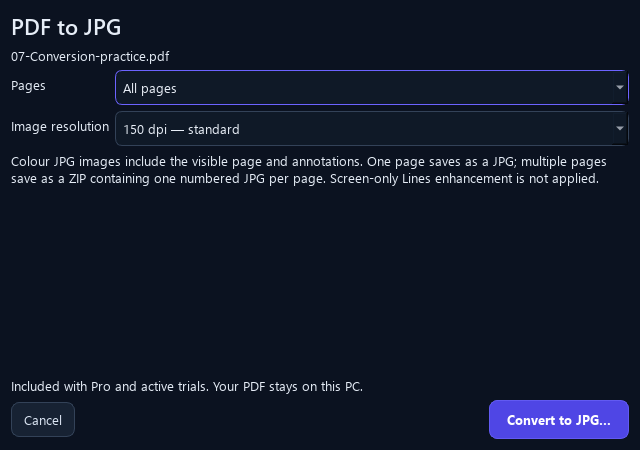
Select All pages, Current page or Choose pages, then choose the resolution. Start with 150 dpi for standard output and inspect the result before increasing it.
1Pages and content optionsThe options shown are from PDF Craft using the fictional conversion-practice PDF.
Real PDF Craft screenshot · guide markers addedSave and inspect the images
Click Convert to JPG. For one page, save the .jpg. For multiple pages, save and extract the .zip. Open the numbered JPGs and check page orientation, colour, labels and fine detail.
Know the saved formatOne page → JPGSeveral pages → ZIPOpen and inspectThe ZIP contains one JPG per selected PDF page, with original page numbers in filenames.
Workflow check
Your questions answered
Why did I get a ZIP instead of a JPG?
A multi-page selection saves one numbered JPG for each page, grouped in a ZIP. Extract the ZIP to use those images.
Will a higher dpi fix a blurry scan?
It produces a larger rendered image, but does not recover detail missing from the original scan.
Can I convert just one page?
Yes. Choose Current page or enter a single page number under Choose pages.
Put it into practice.
Start with the Free reader. Choose Pro for editing, measurement, page tools and PDF conversion.